respond.io Onboarding · Lesson 02
Lesson 02 · The Inbox
Master the Inbox.
The Inbox is where you spend your day. This lesson walks through finding your conversations, replying quickly with the built-in tools, working with teammates, and keeping your queue tidy.
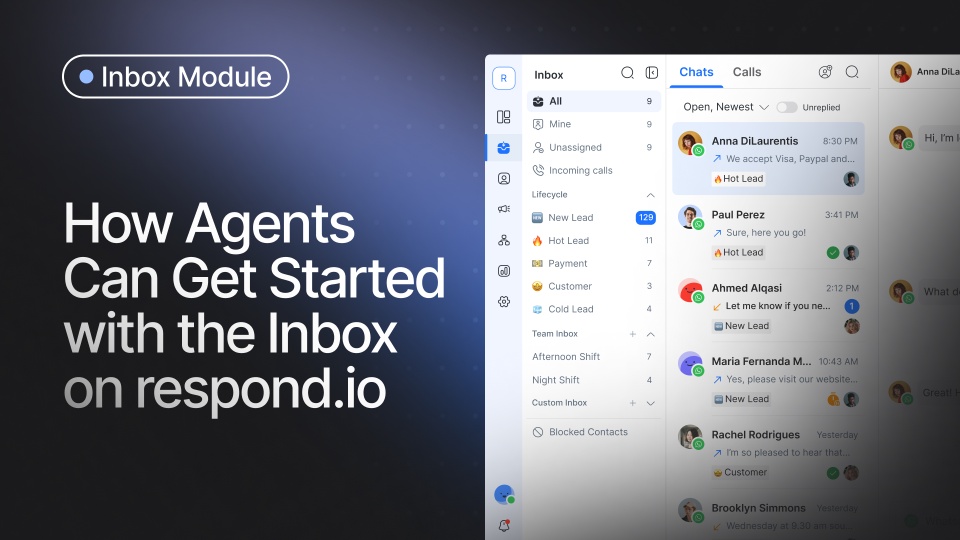
The Inbox is where you manage conversations with customers across every channel. Here is how to work through it, from the start of your day to a closed conversation.
Inbox
- 1Inboxes. Switch between All, Mine and Unassigned. A dot marks new messages.
- 2Conversation list. Every chat across every channel, newest first.
- 3The thread. Full history and context, so you know what came before.
- 4Reply console. Snippets, variables and AI Assist live right here.
01Find the right conversations
There are three main inboxes:
- All: every conversation.
- Mine: conversations assigned to you.
- Unassigned: conversations not yet assigned to any agent.
Whether you see All and Unassigned depends on the permissions your manager sets, so you may only have Mine. A blue dot appears next to any inbox with a new incoming message. If you have voice permissions, an incoming Calls tab also appears, where you can accept or decline calls. Use the tabs at the top to switch between chats and calls.
02Filter and sort
Turn on the Unreplied filter to focus on conversations still waiting for a reply. Use the dropdown to filter Open, Closed or Snoozed, and sort by Newest or Oldest. For calls, filter by status to review past or active calls.
03Understand the contact first
When you click a conversation, you see all previous messages and activities in the history, which gives you context on what happened before. Tap the contact overview on the right to view details. If your workspace is integrated with HubSpot or Salesforce, you can see CRM information about the contact directly on the platform.
04Reply to the customer
When you are ready, type in the message console. These tools help you reply faster while keeping quality high:
- AI Prompts: adjust tone, translate, or fix grammar.
- Emojis: click the icon, or type a colon and the emoji name.
- Audio: record and preview a voice message before sending.
- Files: upload files, images or videos from your device or media library.
- Snippets: insert a saved quick reply, or type a slash to access them faster.
- Variables: add contact information instantly, or type a dollar sign to insert them.
- AI Assist: let the AI draft a reply based on your recent messages.
To reach the contact on another channel, use the channel switcher in the console. To call a contact, click the phone icon at the top and select the channel and number.
05Work with your team
Need help from a teammate? Add a comment and tag them directly in the conversation. Comments are internal, so customers do not see them, but your teammate gets notified so nothing is missed. Use Summarize to generate a quick recap, and the AI Prompt icon in the comment composer to enhance your message.
06Move the conversation forward
- When a contact is ready for the next stage, update the Lifecycle Stage at the top.
- If a contact is sending spam, open the action menu and select Block Contact.
- Use Snooze if you are waiting to follow up later. The chat is hidden and returns at the time you set, or earlier if the contact replies.
- When the conversation is done, simply Close it.
That is your startup guide to the respond.io Inbox. Next, take all of this onto your phone.