Clinic resources · Connect · Plato
Plato Medical · Setup guideConnect Plato to Zelix Labs with a scoped API key
Create a Plato API key that can only do what our booking system needs: manage appointments and look up patients. It cannot see clinical notes or payments, change stock, or charge cards.
Prefer us to set it up with you?See the two ways to set it upWhat an API key is
Why a scoped key
Plato offers two kinds of API key. A full access key can do everything a Plato admin can, including reading clinical notes and charging a patient's saved card. A selected endpoints key can only perform the actions you tick.
Each endpoint is one action, such as "read appointments" or "create a patient". You tick only the actions our system uses, and Plato refuses every other request made with that key.
Already sent us a full-access key? Follow this guide to create the scoped key, send it to us, and delete the full-access key once we confirm the switch (step 7).
Steps
-
Open General Settings
Sign in to Plato with an admin account. Click System Setup in the left menu, then the General Settings tile.
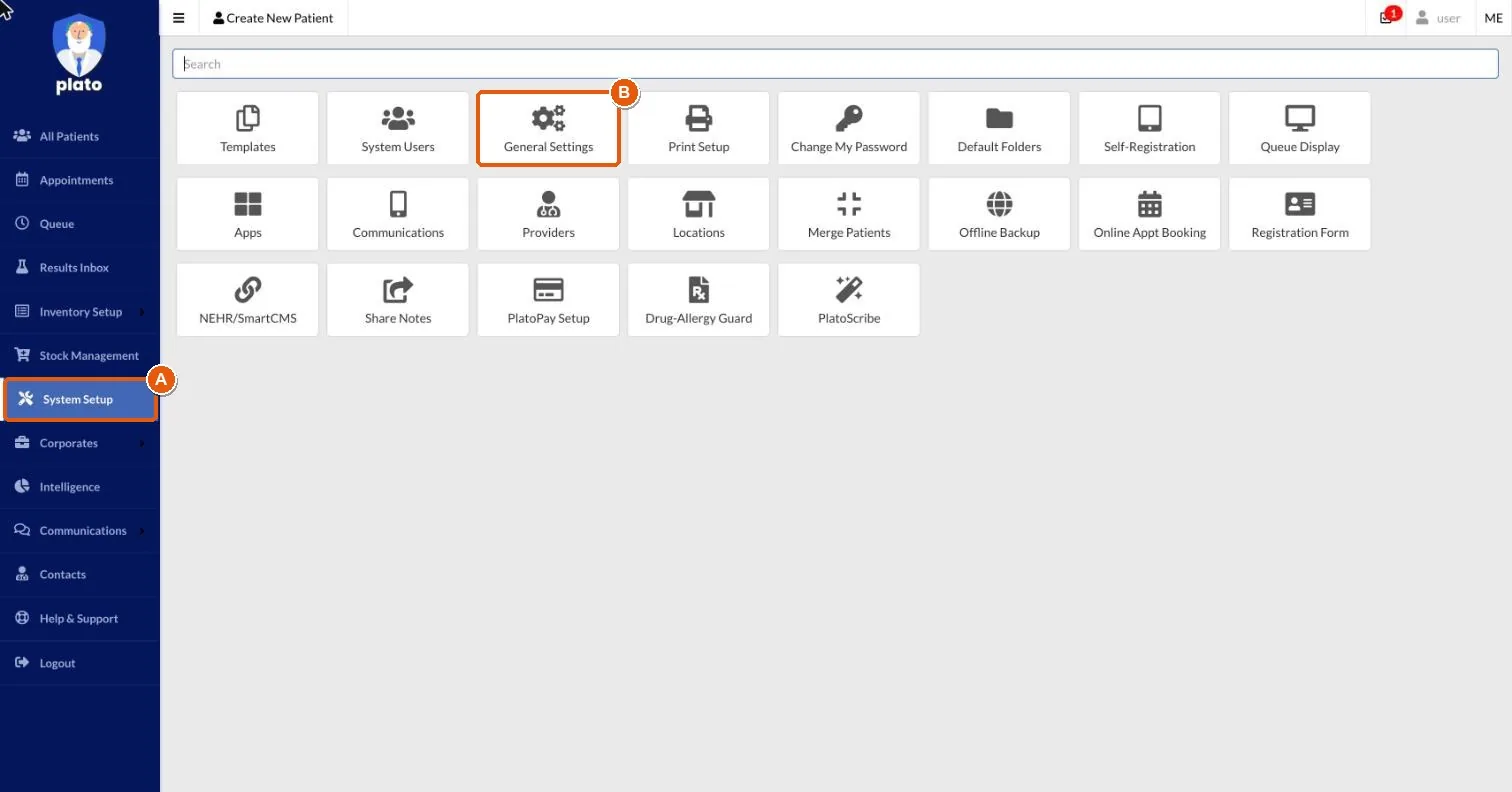
A: System Setup. B: General Settings. -
Open the API tab and click Generate API Key
Click the API tab at the top, then the green Generate API Key button.
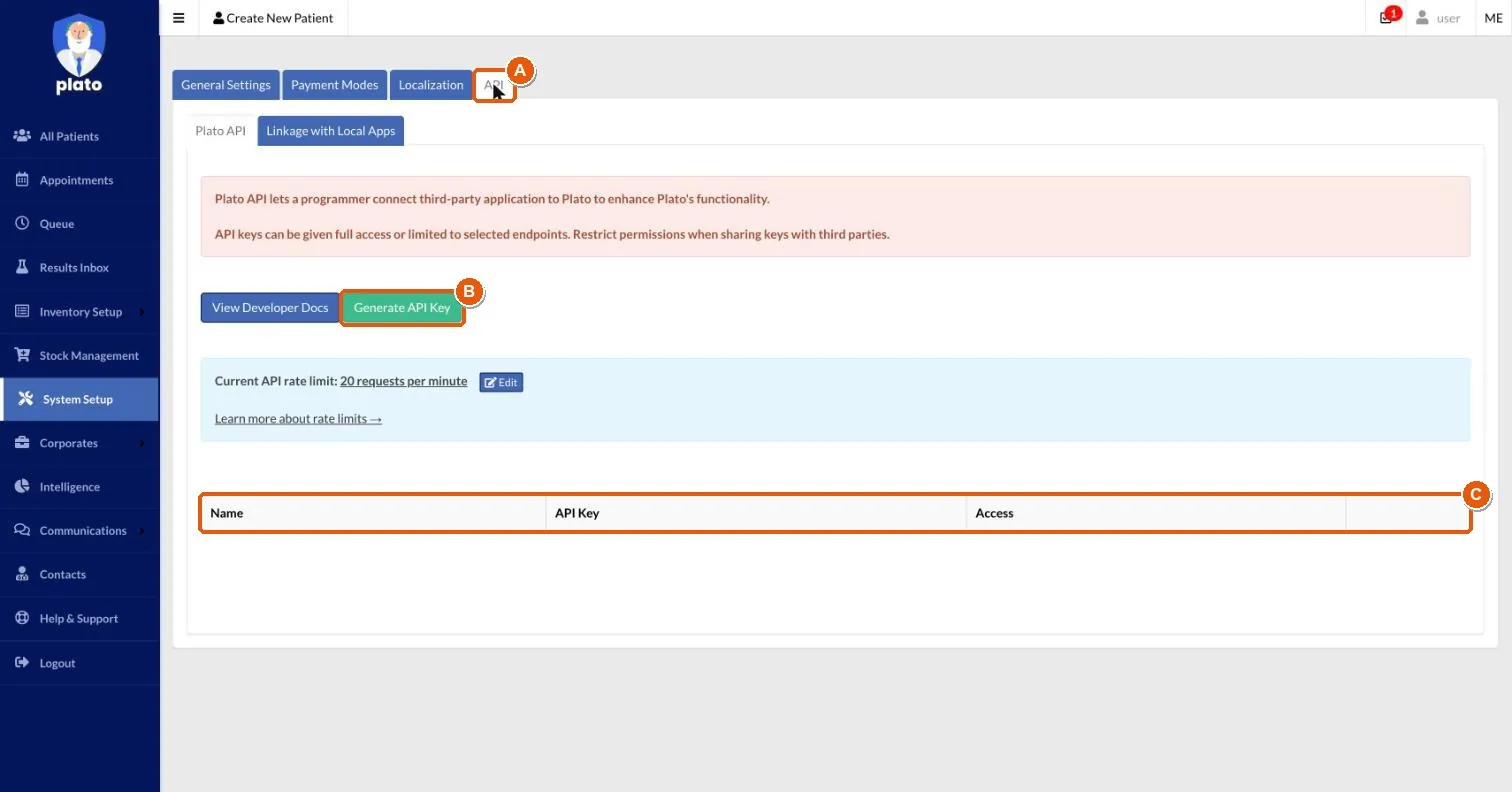
A: API tab. B: Generate API Key. C: your existing keys are listed here. -
Name the key and choose Selected endpoints
Name the key
Zelix Labs bookingso your team can recognise it later. Under Access, choose Selected endpoints. A search box and the full list of endpoints appear.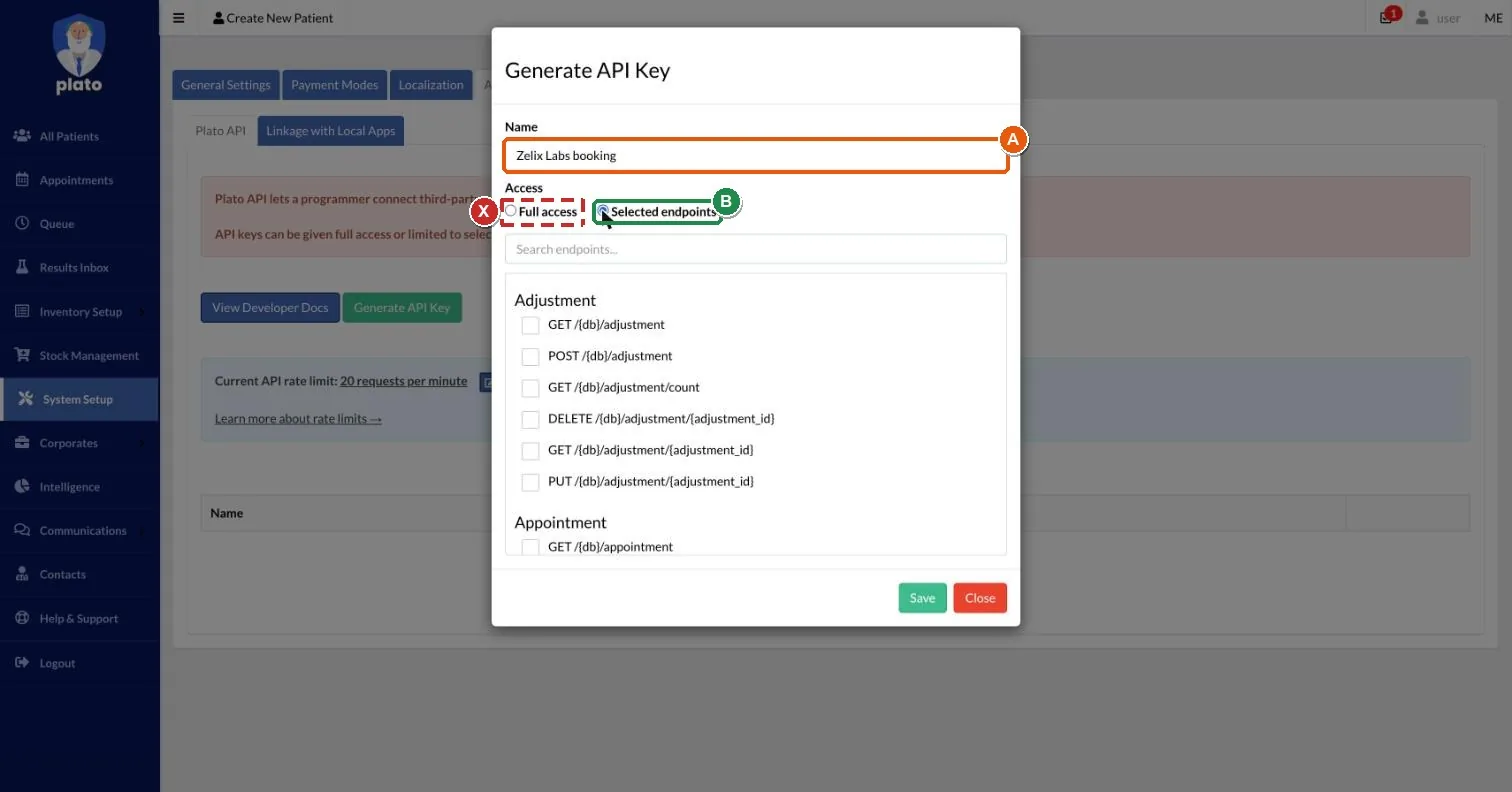
A: key name. B: Selected endpoints. X: leave Full access unselected. -
Search for each group and tick its boxes
Type the first word from the endpoint table into the search box, such as
appointment, and tick the boxes listed for it. Repeat for each group.The list scrolls inside the form. For appointments, scroll down to reach the 9th box,
PUT /{db}/appointment/{appointment_id}.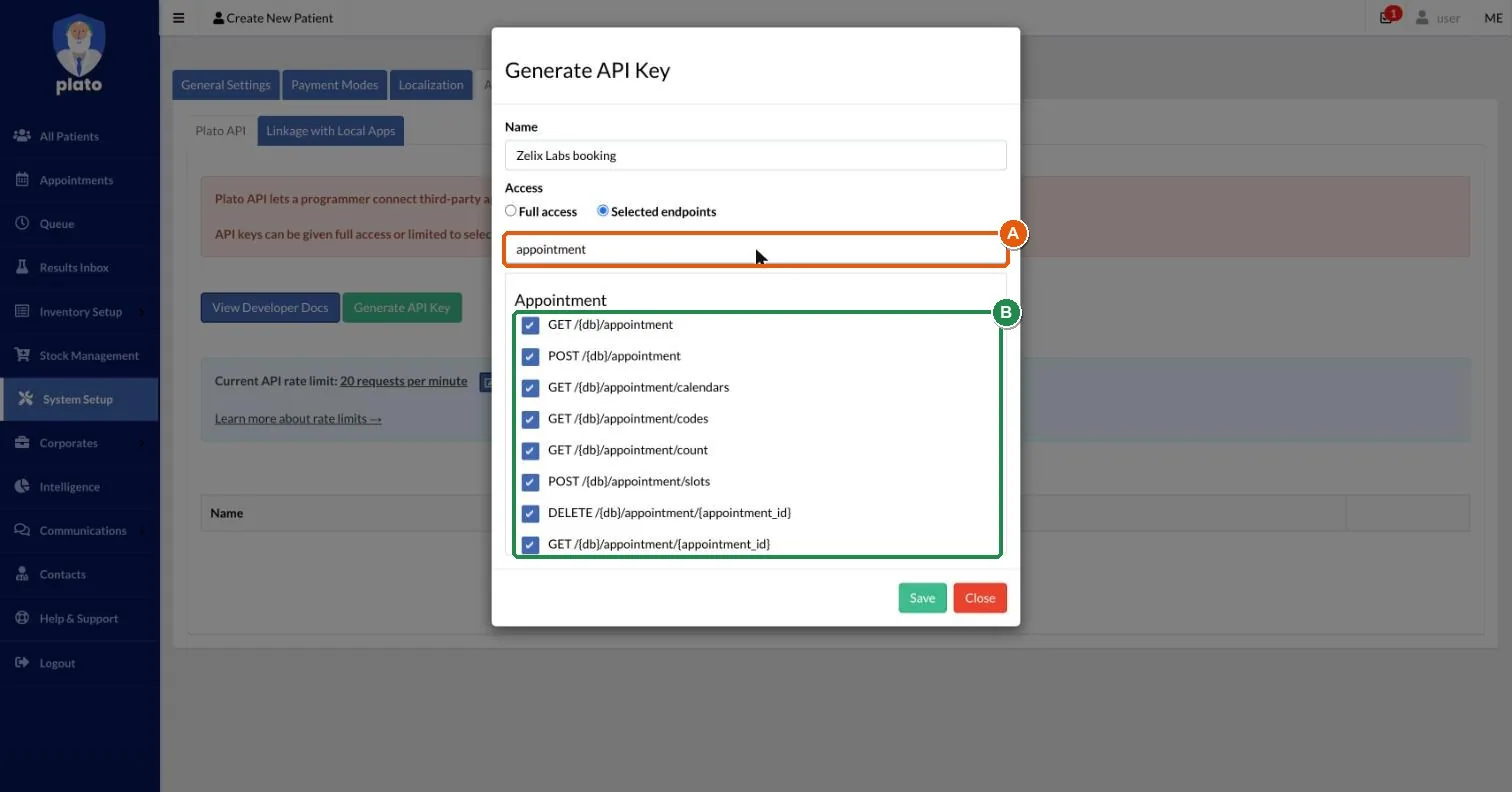
A: search box. B: the appointment boxes, ticked. -
Take care with the patient group
The patient group mixes boxes to tick with boxes to leave alone, so go line by line. Tick the 4 shown below, plus
GET /{db}/search/patientfurther down the list.Leave merge, delete, update and update-link unticked. Also leave every
graphingandpatient/notebox unticked: they hold lab results and clinical notes.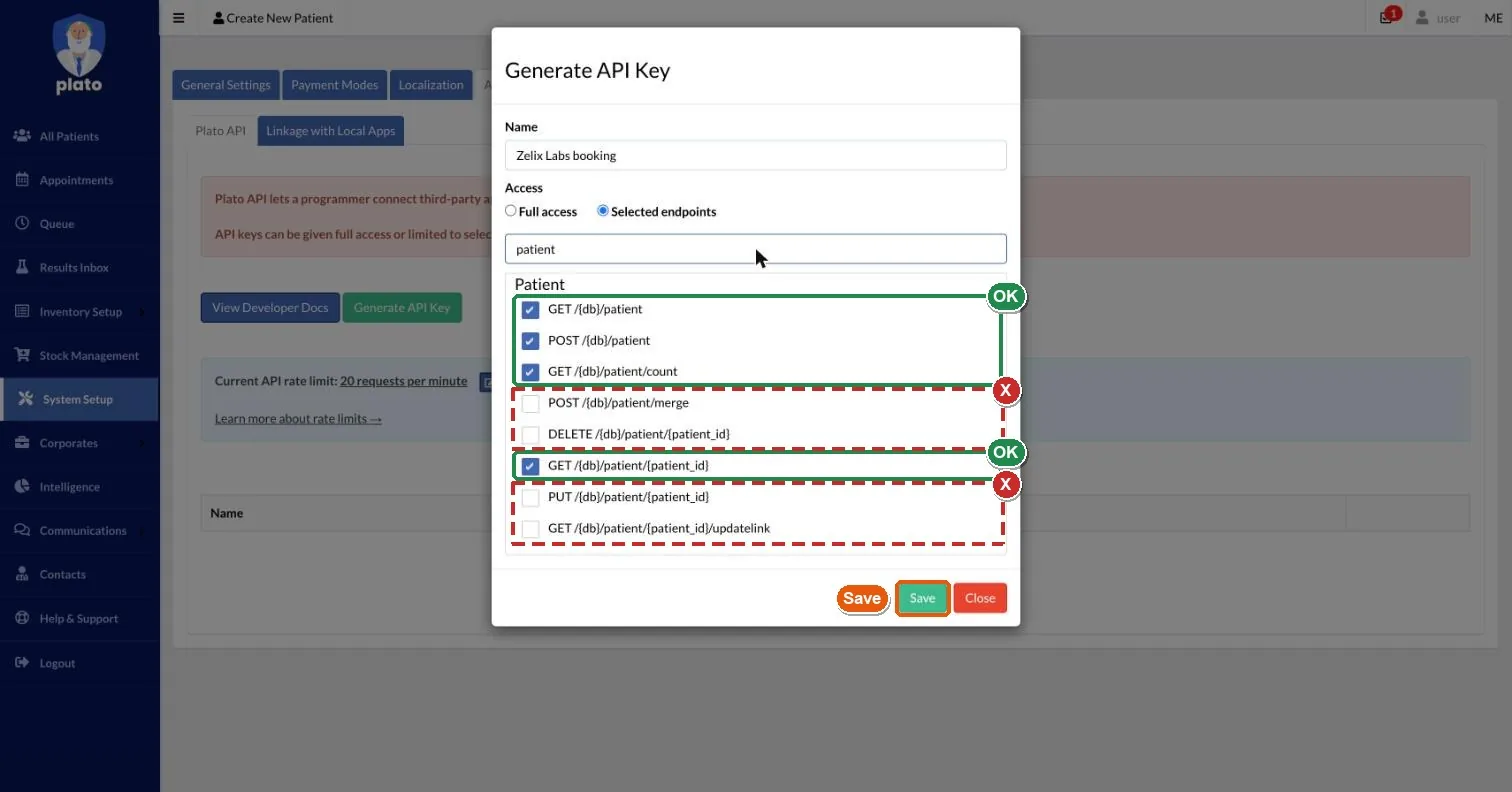
OK (green): tick. X (red, dashed): leave unticked. -
Check the count, then click Save
Once the 18 boxes in the endpoint table are ticked, plus the optional add-on only if your project lead asked for it, click Save. The new key appears in the table at the bottom of the API page (marked C in step 2).
-
Send us the key, then remove any old key
Copy the new key and send it to us through the one-time link your project lead gives you. Please don't send keys by email or chat message: the one-time link can be opened once and then stops working.
If you previously sent us a full-access key, keep it until we confirm the new key works, then delete the old one from the same table.
Endpoints to tick
This is the standard set for every clinic. If your project lead sends you a different list for your project, follow theirs.
| Search for | Tick these boxes | Boxes |
|---|---|---|
appointment | GET /{db}/appointment
POST /{db}/appointment
GET /{db}/appointment/calendars
GET /{db}/appointment/codes
GET /{db}/appointment/count
POST /{db}/appointment/slots
GET /{db}/appointment/{appointment_id}
PUT /{db}/appointment/{appointment_id}
DELETE /{db}/appointment/{appointment_id}
| 9 |
patient | GET /{db}/patient
POST /{db}/patient
GET /{db}/patient/count
GET /{db}/patient/{patient_id}
GET /{db}/search/patient
| 5 |
webhook | GET /{db}/webhook
POST /{db}/webhook
POST /{db}/webhook/activate
DELETE /{db}/webhook/{webhook_id}
| 4 |
18 boxes in total. {db} stands for your clinic's Plato database name and is filled in automatically.
Only if your project lead asks: treatment history and package balances
Some projects space out treatments or redeem prepaid packages, which needs read-only access to invoices and package balances. Tick these 6 boxes only if your project lead has agreed this with you. They can read, never change.
| Search for | Tick these boxes | Boxes |
|---|---|---|
invoice | GET /{db}/invoice
GET /{db}/invoice/count
| 2 |
inventory | GET /{db}/inventory
GET /{db}/inventory/count
GET /{db}/inventory/{inventory_id}
| 3 |
outstanding | GET /{db}/reports/outstanding_packages
| 1 |
For outstanding, tick only outstanding_packages, not the plain outstanding report above it.
Never tick these
Our system never needs any of these. Most are in groups you won't search for, but a few sit right next to boxes you do tick.
| Group | What it would allow |
|---|---|
| platopay | charge_card charges a patient's saved card. The group also lists saved cards and payment accounts. |
| communication | whatsapp/send sends WhatsApp messages from your Plato account. |
| patient_note, graphing, letter | Clinical notes, lab results and medical letters. |
| patient (other actions) | Merging, deleting or editing patient records, and patient update links. |
| invoice / queue | Creating, finalising or voiding invoices, adding or removing payments, and changing the queue. Read-only invoice access is part of the optional add-on only. |
| inventory | Adding, editing or deleting products and prices. Read-only access is part of the optional add-on only. |
| payment | Payment records. |
| Everything else | Adjustment, contact, corporate, delivery order, expense, facility, form, PCN, purchase order, purchase requisition, reports (other than the add-on), other searches, SmartCMS, supplier, system setup, task and transfer. |
What each group is for
Appointments
Check open slots, book, reschedule and cancel, and read each clinic's calendars and appointment codes.
Patients
Match a WhatsApp contact to their Plato record, and create a record for new patients. Existing records are never edited.
Optional: invoices and packages
Read-only, and only when agreed with you. Treatment history and remaining package balances, so bookings follow treatment intervals and use the right package.
Webhooks
Plato notifies our system when your staff change an appointment, so both calendars stay in step.
How we handle your data
Plato limits keys by action, not by field. A key that can read patients still receives the full patient record, including NRIC and allergies. Our system cuts every record down to name, phone and status the moment it arrives, and discards everything else, including NRIC, allergies, alerts and notes. Read the full clinic security standard.
You can stop our access at any time by deleting the key from the API tab.
Plato allows 20 API requests per minute by default, shown on the same API tab. Please leave it at that setting unless your project lead asks you to change it.
Questions about this guide? Contact your Zelix Labs project lead. Screenshots are from a Plato test account; your screens look the same with your own clinic's data.